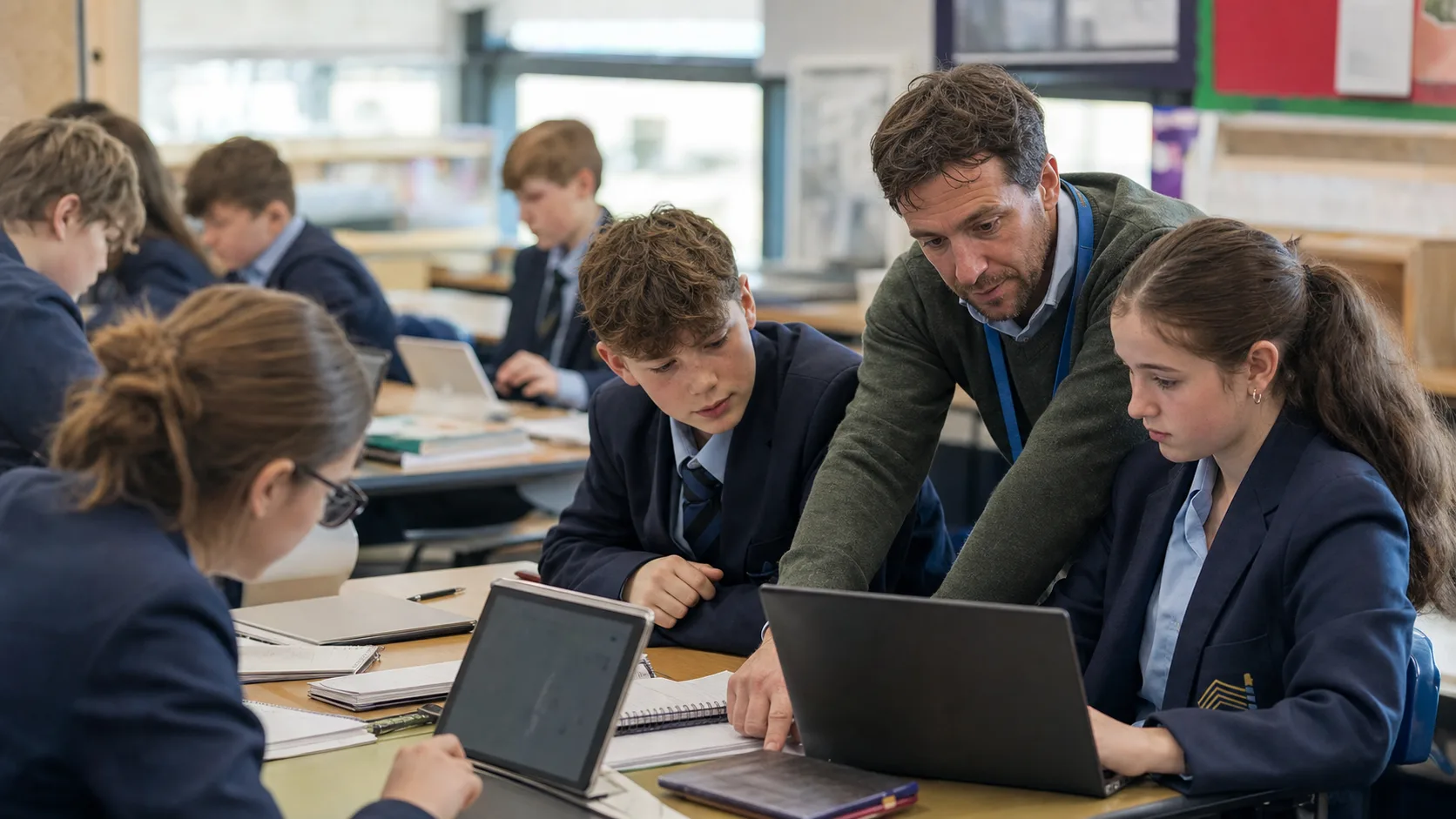
Google Classroom for Teachers: Setup, Tips & Hidden FeaturesSecondary GCSE students in navy blazers using digital devices in a tech-enabled classroom, discussing new Google Classroom features.

Updated on  

March 19, 2026

Google Classroom for Teachers: Setup, Tips & Hidden Features

|

October 23, 2022

Set up Google Classroom, manage assignments, grade work and run Google Meet lessons. Step-by-step guide for UK teachers, updated for 2026.

Course Enquiry
Copy citation

Main, P (2022, October 23). Google Classroom: A teachers guide. Retrieved from https://www.structural-learning.com/post/google-classroom

What is Google Classroom? 2025 Overview

Whether you're new to Google Classroom or looking to maximise its potential in 2025, this comprehensive guide will walk you through everything from initial setup to advanced teaching strategies that transform your digital classroom. Google Classroom is Google's free learning management system that smoothly integrates with Google Workspace tools, allowing teachers to distribute assignments, collect student work, and provide feedback all in one streamlined platform. We'll cover step-by-step setup instructions, explore the latest features and updates, and share practical teaching ideas you can implement immediately to engage your students and simplify your workflow. Ready to discover how this powerful tool can revolutionise your teaching approach and save you hours each week?

Key Takeaways

  1. Google Classroom demonstrably reduces teacher workload and enhances feedback efficiency. By centralising assignment distribution, collection, and grading, teachers can dedicate more time to pedagogical design and providing timely, actionable feedback, a critical factor in pupil attainment (Hattie & Timperley, 2007). This streamlined workflow allows educators to focus on high-impact teaching strategies rather than administrative burdens.
  2. The integration of AI features in Google Classroom in 2025 promises to revolutionise personalised learning experiences for pupils. AI-powered tools can adapt content, provide instant feedback, and identify learning gaps, thereby supporting differentiated instruction and fostering greater pupil agency, as highlighted by research on intelligent tutoring systems (Luckin, 2018). This advancement moves beyond basic content delivery to truly adaptive educational environments.
  3. Google Classroom's seamless integration within the wider Google Workspace for Education suite establishes a powerful, cohesive digital learning ecosystem. This interconnectedness facilitates dynamic collaboration and resource sharing, enabling teachers to design rich, interactive learning experiences that leverage multiple digital tools effectively, a key aspect of effective technology integration (Laurillard, 2012). Such an integrated approach supports a more holistic digital pedagogy.
  4. Implementing advanced teaching strategies within Google Classroom can significantly enhance pupil engagement and foster deeper active learning. Utilising features like interactive assignments, peer feedback mechanisms, and blended learning models moves beyond passive content consumption, actively involving pupils in their learning process, a core tenet of effective pedagogical practice (Bonwell & Eison, 1991). This approach transforms the digital classroom into a dynamic, participatory space.

Learning Management Systems Comparison
PlatformBest ForKey StrengthsLimitationsCost
Google ClassroomK-12, Google Workspace schoolsFree, smooth Google integration, simple interface, easy assignment distributionLimited assessment tools, basic analytics, relies on Google environmentFree
SeesawElementary (K-6)Student portfolios, parent communication, creative tools, voice/video responsesLess suitable for older students, limited for complex assignmentsFree basic; Premium features paid
CanvasHigher education, secondaryStrong gradebook, advanced analytics, extensive integrations, customisableSteeper learning curve, can be overwhelming for younger studentsInstitutional licence required
SchoologyK-12 districtsSocial learning features, standards-based grading, parent access, resources sharingInterface can feel dated, requires district adoptionFree basic; Enterprise features paid

Hub-and-spoke diagram showing Google Classroom at centre connected to different user types and tools
Hub-and-spoke diagram: Google Classroom environment structure and user roles

Google Classroom is a free learning management system (LMS) launched by Google on August 12, 2014, as part of Google Workspace for Education. The platform enables teachers to create lessons, distribute assignments, collect student work, and provide feedback, all within a streamlined digital environment. During the COVID-19 pandemic, Google Classroom became an indispensable tool for schools worldwide as educators needed reliable online tools to maintain connections with students learning remotely and help them in finding purposein their education.

Infographic showing four key benefits of Google Classroom for teachers: zero cost, advanced features, two-way communication, and device friendly access.
Teacher Benefits

Top Benefits for Modern Teachers

  1. Zero Cost, Maximum Impact: Discover how Google Classroom's completely free platform can transform your teaching without straining school budgets or requiring expensive licenses.
  2. Beyond Basic Assignments: Master advanced features like originality reports, scheduled assignments, and rich media integrationthat most teachers overlook in their digital classrooms.
  3. The Two-Way Communication Revolution: Transform passive announcements into dynamic discussions that boost student engagement and create the collaborative classroom environment research proves works.
  4. Works on Everything: Learn why device compatibility and offline functionality mean every student can access your classroom, solving the digital divide challenge.

Google Classroom integrates smoothly with other Google applications including Docs, Sheets, Slides, Sites, Earth, Calendar, and Gmail. Teachers can enhance their virtual classrooms with Google Hangouts or Meet for live instruction and real-time questions, while integrating safeguarding toolsto ensure student safety in digital learning environments. How Google Classroom can be integrated into everyday class activities and scaffold individual students' curriculum learning.

Google Classroom Pricing and Plans

Google Classroom is completely free to use. All the apps that function with the service are already free Google tools, and Classroom just collects them all in one location. To include all of its students and teachers, an educational institution must join up for the service. This is done to ensure that security is as tight as possible, preventing outsiders from gaining access to the information or students involved.

Google does not scan the data and does not use it for advertising. Google Classroom and the Google Workspace for Education platform as a whole do not contain any adverts so distractions are kept to a minimum.

Infographic showing six key benefits of Google Classroom for teachers including cost, integration, and accessibility
Google Classroom Benefits

There are packages available in the larger Google environment, where Classroom is located, that can provide benefits in exchange for payment.

Needs research for current 2025 pricing and includes meetings with up to 250 participants, live-streaming to up to 10,000 spectators via Google Meet, and other features such as Q&A, surveys, and more. You also get the Classroom add-on, which allows you to easily integrate tools and information. There are endless originality reports available to check for plagiarism and other issues.

Google Classroom
Google Classroom

Google Classroom concept map showing LMS features, setup process, teaching tools, and integration with Google Workspace
Google Classroom Guide 2025: Features, Setup, and Teaching Ideas, Visual Overview

What devices is Google Classroom is compatible with?

Because Google Classroom is web-based, you can access it from almost any device that has a web browser. Processing is largely done at Google's end, therefore even older devices can handle the majority of Google Classroom's functions.

The Google Classroom mobile app is available for Android and iOS devices, including tablets and smartphones. Students can use the mobile app to submit assignments by taking a photo of their work and uploading it. The mobile app provides offline capabilities, which allows students to view downloaded assignments, even without an internet connection. These device capabilities ensure that learning can continue regardless of connectivity issues, making education more accessible to all students.

Setting up Google Classroom

Setting up Google Classroom is a straightforward process. Here’s a step-by-step guide to get you started:

  1. Create a Google Account: If you don’t already have one, create a Google account. If you are a school or educational institution, you should create a Google Workspace for Education account, which provides additional features and security.
  2. Access Google Classroom: Go to classroom.google.com and sign in with your Google account.
  3. Create a Class: Click the "+" icon in the top right corner and select "Create Class". Enter the class name, section, subject, and room. Click "Create".
  4. Invite Students: There are two ways to invite students:
    1. Class Code: Share the class code with your students. They can then join the class by entering the code in their Google Classroom.
    2. Email Invitations: Click on the "People" tab and enter the email addresses of your students. They will receive an email invitation to join the class.
  5. Organise Your Classroom:
    1. Stream: The "Stream" is where you can post announcements, share resources, and create discussion topics.
    2. Classwork: The "Classwork" tab is where you can create assignments, quizzes, and materials. Organise your content by topic to make it easy for students to find what they need.
    3. People: The "People" tab is where you can manage students and co-teachers.
    4. Grades: The "Grades" tab is where you can view and manage student grades.

Essential Features Every Teacher Needs

Google Classroom is a free web-based platform that brings together Google's productivity tools into a unified learning environment designed specifically for education. Launched in 2014 as part of Google Workspace for Education, it serves as a digital hub where teachers can create, distribute, and mark assignments whilst students submit work and receive feedback, all without the need for paper. The platform integrates naturally with familiar Google tools like Docs, Slides, and Forms, making it accessible for teachers and students who already use these applications.

At its core, Google Classroom functions as a streamlined learning management system that simplifies the administrative aspects of teaching. Teachers can create virtual classrooms for each subject or period, invite students via a simple class code, and begin sharing resources immediately. For instance, a Year 9 English teacher might post a Shakespeare analysis assignment on Monday morning, attach a rubric created in Google Docs, and set the submission deadline for Friday, with all students receiving instant notification on their devices.

The platform excels at promoting digital organisation and reducing teacher workload through automation. When students submit assignments, Google Classroom automatically creates individual copies of documents, preventing the common issue of multiple students editing the same file. Teachers can provide real-time feedback directly on student work, track submission status at a glance, and maintain a digital record of all classroom activities. A primary school teacher managing 30 pupils can mark maths worksheets digitally, leaving voice comments for younger learners who benefit from verbal feedback, whilst automatically recording grades in their markbook.

Research by the University of Michigan (2023) found that teachers using Google Classroom saved an average of five hours per week on administrative tasks, time that could be redirected towards lesson planning and student support. The platform's strength lies in its simplicity; unlike more complex learning management systems, Google Classroom requires minimal training and can be implemented effectively within days rather than weeks.

Quick Setup Tutorial for Beginners

Getting started with Google Classroom requires just a few minutes and your school's Google Workspace account. Navigate to classroom.google.com and sign in with your educational email address. Once logged in, click the plus icon in the top right corner and select 'Create class' to begin setting up your first digital classroom space.

When creating your class, you'll need to provide essential details including the class name, section, subject, and room number. Consider using a clear naming convention such as 'Year 9 Science 2025' or 'Maths 7B Spring Term' to help students easily identify your classroom. The platform automatically generates a unique class code that students will use to join; write this on your whiteboard during the first lesson or email it to parents for younger pupils.

After creating your class, customise the appearance by clicking 'Select theme' in the header area. Choose a theme that reflects your subject area, perhaps a science laboratory image for chemistry lessons or a colourful pattern for primary classrooms. This visual consistency helps students quickly recognise your classroom amongst their other courses.

The final setup step involves configuring your class settings. Click the gear icon to access options for grading categories, late work policies, and Guardian Summaries. Enable Guardian Summaries to automatically send weekly emails to parents about their child's missing work and upcoming assignments, a feature particularly valuable for maintaining home-school communication. Set your grading system to match your school's policy, whether that's percentage-based marking or descriptive feedback for younger learners.

Google Classroom 2025 AI and New Features

Google Classroom continues to evolve with significant updates in 2025, introducing features that address teachers' most pressing needs for assessment, differentiation, and student engagement. The platform now includes enhanced AI-powered grading suggestions that help teachers provide more consistent feedback whilst saving valuable marking time. Additionally, the new Practise Sets feature allows teachers to create interactive, self-marking assignments with automatic hints and explanations, transforming homework into guided learning experiences.

One of the most anticipated updates is the expanded rubric functionality, which now supports peer assessment and self-evaluation tools. Teachers can create detailed rubrics with video explanations for each criterion, helping students understand expectations before beginning their work. For instance, when assigning a creative writing task, you might include short video clips demonstrating what 'excellent character development' looks like in practise, enabling students to assess their own progress against clear benchmarks.

The 2025 update also introduces improved differentiation tools through the new Learning Paths feature. Teachers can now automatically assign different versions of the same task based on student performance data from previous assignments. This means when teaching fractions, for example, struggling students might receive additional scaffolding questions whilst advanced learners access extension challenges, all within the same assignment framework. The platform tracks individual progress and suggests next steps, making personalised learning more manageable even in large classes.

Integration with third-party educational apps has also expanded significantly, with over 50 new verified education tools now connecting easily with Google Classroom. Popular UK resources like Oak National Academy and BBC Bitesize can now be embedded directly into assignments, allowing students to access quality content without leaving the platform. These integrations support research by Hattie (2023) on the importance of providing multiple representations of content to improve understanding and retention.

Frequently Asked Questions

What is Google Classroom used for in education?

Google Classroom is a free learning management system designed to streamline how teachers distribute assignments, collect student work and provide feedback. It integrates smoothly with Google Workspace tools like Docs and Drive. This allows schools to organise their digital learning environment without requiring paid licences.

How do teachers set up assignments in Google Classroom?

Teachers can create assignments by navigating to the Classwork tab and clicking the create button. From there, they can attach files, set due dates, add grading rubrics and assign work to specific students or the whole class. Work can be scheduled in advance to help manage teacher workload.

What are the benefits of using Google Classroom for learning?

The platform centralises communication and resources, making it easier for students to access their materials from any device. It supports real-time collaboration through Google Docs and facilitates prompt teacher feedback. Furthermore, its offline capabilities allow students to download work and continue learning without a constant internet connection.

What does the research say about using learning management systems like Google Classroom?

Educational research indicates that digital platforms improve the organisation of resources and make feedback cycles more efficient. Studies highlight that structured digital environments can reduce cognitive load by keeping all materials in one predictable location. However, evidence suggests that the tool is most effective when paired with strong pedagogical strategies rather than replacing direct instruction.

What are common mistakes when using Google Classroom?

A frequent mistake is overloading the stream with resources instead of organising them clearly in the Classwork tab. Teachers also sometimes forget to select the option to make a copy for each student, resulting in the whole class editing a single document. Finally, inconsistent naming conventions for assignments can make it difficult for students to find specific tasks.

How do schools ensure safeguarding within Google Classroom?

Educational institutions must register for Google Workspace for Education to create a secure, closed environment for their students. Google does not scan student data for advertising purposes and removes all adverts from the platform. Schools can also apply administrative controls to limit who can join classes and manage communication features.

Advanced Teaching Strategies for 2025

Google Classroom offers numerous opportunities to enhance teaching and learning. Here are some effective teaching ideas to make the most of the platform:

  • Interactive Assignments: Use Google Docs and Slides to create interactive assignments where students can collaborate in real-time. For example, create a shared document for brainstorming ideas or a collaborative presentation where each student contributes a slide.
  • Formative Assessments: Use Google Forms to create quizzes and polls for formative assessment. The results can provide instant feedback on student understanding, allowing you to adjust your teaching accordingly. Use formative assessment strategies to guide your teaching.
  • Multimedia Integration: Embed videos, audio clips, and images into your assignments and materials to offer multiple ways for students to engage. Use Google Earth for virtual field trips or create video lessons using Google Meet.
  • Peer Review: Use Google Docs for peer review activities. Students can provide feedback on each other’s work using the commenting feature, promoting critical thinking and collaboration.
  • Differentiated Instruction: Create different assignments for students based on their learning needs. Use the "Assign to specific students" feature to tailor your instruction.
  • Originality Reports: Enable originality reports to check student work for plagiarism. This feature helps students develop academic integrity and promotes original thinking.
  • Scheduled Assignments: Plan your lessons in advance and schedule assignments to be released at specific times. This feature helps you stay organised and manage your workload effectively.
  • Discussion Forums: Use the "Stream" to create discussion forums where students can ask questions, share ideas, and engage in meaningful conversations.

Google Classroom is more than just a tool for distributing assignments; it’s a dynamic platform that can transform your teaching and enhance student learning. By exploring its features and integrating it creatively into your curriculum, you can create an engaging and effective digital learning environment.

Implementation Tips and Best Practices

Google Classroom has transformed education by providing a centralised, accessible, and cost-effective platform for teachers and students. Its smooth integration with other Google Workspace tools enhances workflow, promotes collaboration, and ensures efficient communication. From distributing assignments to conducting formative assessments, Google Classroom offers a versatile suite of features that cater to diverse teaching needs.

As we look ahead to 2025, Google Classroom will likely continue to evolve, incorporating new technologies and features to meet the changing demands of education. By embracing Google Classroom and using its full potential, educators can create engaging, effective, and equitable learning environments that helps students to succeed in the digital age. The adaptability and accessibility of this LMS makes it a vital component in modern educational settings, ensuring students remain connected and supported throughout their academic process.

Helpful Resources and Tools

  1. Johnson, L., Adams Becker, S., Estrada, V., & Freeman, A. (2015). *NMC Horizon Report: 2015 Higher Education Edition*. The New Media Consortium. Retrieved from [https://www.learntechlib.org/p/152584/](https://www.learntechlib.org/p/152584/), Provides insights into trends and challenges in educational technology, including the adoption of LMS platforms.
  2. Henderson, M., Selwyn, N., & Aston, R. (2017). What works and why? Investigating successful use of technology in higher education. *Studies in Higher Education, 42*(8), 1567-1585., Explores the factors that contribute to the successful integration of technology in education.
  3. Dalgarno, B., & Lee, M. J. W. (2010). What are the learning affordances of 3‐D virtual environments?. *British Journal of Educational Technology, 41*(1), 10-32., Discusses the benefits of using virtual environments in education, highlighting the importance of engaging learning experiences.
  4. Looi, C. K., Sun, D., Wu, L., Seow, P., Chia, G., & Norris, C. (2018). *smooth learning: Facilitating anywhere-anytime learning with mobile technologies*. Springer., Examines the role of mobile technologies in creating smooth learning experiences.
  5. Means, B., Bakia, M., & Murphy, R. (2014). *Learning online: What research tells us about whether, when and how*. Routledge., Summarises research on online learning, providing evidence-based recommendations for effective online instruction.

Google Workspace for Education: How Classroom Fits the Wider Suite

Google Classroom does not work in isolation. It sits at the centre of the Google Workspace for Education suite, acting as the hub that connects a broader set of tools into a coherent learning environment. Understanding this relationship helps you plan lessons that use each tool for the task it handles best.

The Four Tiers of Google Workspace for Education

Google offers four editions: Fundamentals (free), Standard, Teaching and Learning Upgrade, and Plus. Most UK state schools use Fundamentals, which gives every teacher and pupil a school-managed Google account, 100 TB of pooled Drive storage, and full access to Classroom at no cost. The paid tiers add features such as recorded Meet sessions, advanced security controls, and originality reports beyond the free allowance (Google, 2024).

The distinction matters because it affects what you can reasonably promise parents. Under Fundamentals, pupil accounts are managed by your school's domain administrator. Data stays within the school's Google Workspace tenant, which is governed by your school's data processing agreement with Google rather than the consumer Terms of Service.

Core Tool Integrations Teachers Use Daily

Each Google Workspace tool has a specific strength that Classroom orchestrates:

Google Workspace Tools and Their Primary Role in Classroom Workflows
Tool Primary classroom use Key feature for teachers
Google Docs Written assignments, drafts, peer review Suggestion mode for tracked feedback without overwriting student work
Google Slides Collaborative presentations, exit tickets Assign one slide per pupil within a shared deck for group tasks
Google Forms Quizzes, surveys, entrance tickets Auto-grading with answer keys and answer point values
Google Meet Live lessons, parent meetings, revision sessions Breakout rooms (paid tier) and live captions in 70+ languages
Google Drive Resource storage, template library Shared drives allow department-level resource libraries with permission controls
Google Jamboard / Canvas Visual brainstorming, collaborative diagrams Sticky notes and drawing tools support kinaesthetic tasks on any device

GCSE and A-Level Coursework Workflows

For secondary teachers managing coursework, Classroom's integration with Drive is particularly useful. When you create an assignment and choose 'Make a copy for each student', Google automatically generates individual files in each pupil's Drive, named with their name and the assignment title. This preserves a clear audit trail without any manual file management.

Teachers in subjects with extended project work, such as GCSE Art or A-Level Geography, often set up a shared Drive folder structure at the start of the year: one folder per pupil, with sub-folders for drafts, final submissions, and teacher feedback. Linking this to a Classroom assignment means pupils submit a link rather than uploading duplicate files, keeping storage usage manageable.

Research by Iftakhar (2016) found that Google Classroom reduced administrative time for teachers by standardising submission workflows, allowing more class time to focus on instruction rather than logistics. A subsequent study by Heggart and Yoo (2018) confirmed that Year 10 students reported stronger engagement when assignments were returned with in-document comments rather than generic written grades, pointing to the value of Google Docs' comment and suggestion features within Classroom's feedback loop.

Data Privacy and GDPR Compliance for UK Schools

Before you use any cloud platform with pupils, your school's data protection officer needs to be satisfied that it meets UK GDPR requirements. Google Classroom is not automatically compliant simply because it is widely used. The responsibility for compliance sits with the school as the data controller, not with Google.

What UK GDPR Requires

UK GDPR (which mirrors EU GDPR post-Brexit, with some divergences) requires schools to have a lawful basis for processing pupil data, to document that basis, and to ensure that any third-party processor, including Google, has signed a Data Processing Agreement (DPA). Google provides its Workspace for Education DPA automatically when schools sign up for a managed domain. This covers processing within the school's Google Workspace tenant for the purposes of providing the service (Google, 2024).

Pupil data processed under the DPA cannot be used by Google for advertising. This is a firm contractual commitment within Workspace for Education accounts, which distinguishes school accounts from consumer Gmail accounts. Your pupils' work, emails, and Drive files are not scanned for advertising purposes under the school agreement.

Key Compliance Steps for Your School

The Information Commissioner's Office (ICO) recommends that schools complete a Data Protection Impact Assessment (DPIA) before deploying a new cloud service. For Google Workspace, this means documenting the categories of data processed (names, email addresses, assignment content, assessment scores), the legal basis (typically 'legitimate interests' or 'public task' for state schools), and the safeguards in place.

Three practical steps to take before your first class:

  1. Check your school's DPA with Google. Your IT administrator or local authority will have a record. If your school signed up through an Education Reseller, confirm the DPA is the current Google Workspace for Education version, not an older consumer-grade agreement.
  2. Set pupil account age restrictions. Google allows school admins to restrict services for accounts belonging to pupils under 13. Ensure your admin console has age-appropriate settings applied before creating classes with primary-age children.
  3. Review the data retention settings. Configure Google Vault (available on paid tiers) or establish a clear deletion schedule for pupil accounts after they leave. UK GDPR requires data not to be held longer than necessary.

FERPA and International Schools

If you work in a British international school serving American curriculum students, or if your school has pupils who are US nationals, you may also need to consider FERPA (the Family Educational Rights and Privacy Act). Google's DPA for Workspace for Education is designed to meet FERPA requirements in addition to GDPR, provided the school has signed the appropriate agreement (US Department of Education, 2023). Schools in this position should seek specific legal advice rather than relying solely on Google's standard documentation.

Data privacy compliance is not a one-time task. Build an annual review into your school's data protection calendar, particularly when Google updates its Terms of Service or introduces new features such as AI-powered tools that may process additional data types.

Accessibility Features: Supporting Every Learner in Google Classroom

Google Classroom includes a range of accessibility features that support pupils with visual impairments, hearing difficulties, dyslexia, and English as an Additional Language. Many of these tools are built into the underlying Google Workspace applications rather than Classroom itself, but because Classroom delivers work through those tools, the accessibility benefits carry through to every assignment.

Screen Reader and Keyboard Navigation

Google Classroom is designed to work with major screen readers, including JAWS, NVDA, and VoiceOver on iOS and macOS. Navigation between the Stream, Classwork, People, and Grades tabs can be managed entirely by keyboard, which matters for pupils who cannot use a mouse. Google documents its accessibility conformance against WCAG 2.1 AA standards, and maintains a Voluntary Product Accessibility Template (VPAT) that your SENCO can request to verify compatibility with specific assistive technologies (Google, 2023).

In practice, test any assignment you create with a screen reader before distributing it. PDFs attached to assignments can create barriers if they are image-based rather than text-based. Where possible, use Google Docs instead of PDF uploads so that the text is machine-readable and pupils can use the built-in text-to-speech tools.

Built-In Text-to-Speech and Reading Support

Google Chrome includes a built-in screen reader (ChromeVox) for Chromebook users. The Chrome extension 'Read&Write for Google Chrome' by Texthelp is widely used in UK schools and integrates directly with Google Docs and Classroom. It provides text-to-speech, word prediction, dictionary lookups, and highlighting tools that support pupils with dyslexia or processing difficulties.

Google Docs also supports voice typing (Tools> Voice Typing), which allows pupils to dictate their responses rather than type. This is a low-barrier accommodation for pupils with motor difficulties or those who find writing physically challenging. No additional hardware is required beyond a microphone, which is built into most Chromebooks and tablets.

Live Captions in Google Meet

When you run live lessons through Google Meet, live captions can be enabled with a single click. These captions display a real-time transcription of speech in English and a growing number of other languages. For pupils with hearing impairments, this removes the need for a separate transcription service during synchronous sessions. Captions are generated locally on the device and are not stored by Google, which avoids additional data processing concerns.

Translated captions are available on paid tiers of Workspace, allowing pupils to see captions in their preferred language. This is particularly useful in schools with high numbers of EAL learners. In a study by the Education Endowment Foundation reviewing technology use with EAL pupils, accessible captioning during live instruction was identified as one of the lower-cost, higher-impact adjustments schools could make (EEF, 2021).

Differentiated Access Through Assignment Settings

Classroom's 'Assign to specific students' feature allows you to send differentiated versions of an assignment without the rest of the class seeing who received which version. You can attach a simplified text, an audio recording of the instructions, or a version with larger font and additional scaffolding, while assigning the standard version to other pupils. This preserves pupil dignity, which research on inclusive practice consistently identifies as a prerequisite for engagement (Black-Hawkins, Florian, and Rouse, 2007).

Formative Assessment and Auto-Grading with Google Forms

One of Google Classroom's most practical features for busy teachers is the ability to attach a Google Form quiz as an assignment and have responses automatically graded against an answer key you set in advance. Understanding how this works in depth, and where its limits lie, will help you use it as part of a thoughtful formative assessment strategy rather than simply as a marking shortcut.

Setting Up a Google Forms Quiz

To create a graded quiz, open Google Forms, click the Settings gear icon, and toggle 'Make this a quiz' on. This unlocks the answer key panel for each question. You can assign point values, mark correct answers for multiple choice, checkbox, and dropdown question types, and write custom feedback that appears when a pupil selects a correct or incorrect response.

Short-answer and paragraph questions cannot be auto-graded for content, though you can set a 'correct answer' for short-answer questions where the wording is predictable (for example, single-word science vocabulary questions). For extended writing, the form will collect responses but you will still need to grade manually in the Classroom grading interface. This is a genuine limitation: auto-grading handles recall and recognition tasks well, but cannot assess reasoning, argument, or original analysis.

Question Bank and Import Features

Google Forms allows you to import questions from previous forms using the question import tool (the icon that looks like a grid with a plus sign). This means you can build a departmental bank of diagnostic questions over time and draw from it when creating new assessments, rather than rewriting questions from scratch each year. Department heads can store the master form in a shared Drive folder and grant edit access to all colleagues.

For subjects with a fixed knowledge base, such as GCSE Biology or GCSE History key dates, this question bank approach supports the kind of spaced retrieval practice that cognitive science research endorses. Roediger and Butler (2011) found that testing effects are stronger when retrieval is spaced across multiple sessions rather than massed before an exam, a finding directly applicable to weekly Google Forms quizzes that revisit earlier content.

Using Rubrics for Extended Work

For assignments where auto-grading is not appropriate, Classroom's built-in rubric tool provides structured grading without switching to a separate spreadsheet. To add a rubric, click 'Rubric' when creating or editing an assignment. You can build criteria rows with descriptors and point values, import a rubric from a previous assignment, or import a rubric from a Google Sheet using the specific template format Classroom accepts.

When grading, clicking on a rubric cell automatically awards the associated points and adds the descriptor text to the feedback panel. This speeds up grading for extended writing while maintaining consistency across a class, which is particularly useful when multiple teachers mark the same assignment across parallel groups.

Reading Responses and Acting on Data

Google Forms automatically generates a summary of responses in the Responses tab, showing charts for multiple choice questions and a list of text responses. For a quick class-level view, this tells you at a glance which questions most pupils answered correctly and which exposed a gap. However, for question-by-question analysis at pupil level, click 'View in Sheets' to export the data to a Google Sheet, where you can sort, filter, and conditional-format to identify patterns.

Wiliam (2011) argues in 'Embedded Formative Assessment' that the value of any assessment lies not in the score it produces but in the instructional decision it prompts. A Google Forms quiz is only as useful as what you do with the results. Build a simple rule into your workflow: if more than a third of the class answers a question incorrectly, that concept returns in the next lesson before you move on. The data is there; the decision is yours.

Free Resource Pack

Download this free Educational Technology & Online Learning Tools resource pack for your classroom and staff room. Includes printable posters, desk cards, and CPD materials.

Free Resource Pack

EdTech & Online Learning Toolkit

Practical resources to integrate educational technology and enhance online learning in your classroom.

EdTech & Online Learning Toolkit — 4 resources
CPD Briefing VisualQuick Reference GuidePlanning TemplateStrategy CardsEducational TechnologyOnline LearningBlended LearningDigital PedagogySAMR Model

Download your free bundle

Fill in your details below and we'll send the resource pack straight to your inbox.

Quick survey (helps us create better resources)

How confident do you feel in effectively integrating educational technology and online learning tools into your teaching practice?

Not Confident
Slightly Confident
Moderately Confident
Confident
Very Confident

To what extent do you feel supported by your school and colleagues in exploring and implementing new educational technologies?

Not at All
Slightly
Moderately
Well Supported
Very Well Supported

How often do you currently use online learning tools to facilitate collaborative activities among your students?

Never
Rarely
Sometimes
Often
Very Often

Your resource pack is ready

We've also sent a copy to your email. Check your inbox.

Further Reading: Key Research Papers

These peer-reviewed studies provide the research foundation for the strategies discussed in this article:

Impact of Online Learning Platforms on active learning in India View study ↗
9 citations

Divya Joshi (2024)

This comprehensive analysis of online learning platforms in India reveals specific factors that drive learner participation in digital environments. The study identifies which platform features and teaching strategies most effectively keep students motivated and participating actively in online classes. Educators using Google Classroom or similar platforms can apply these insights to design more engaging virtual learning experiences that maintain student interest and participation.

A DIGITAL PEDAGOGICAL TRANSFORMATION MODEL IN ELECTRICAL ENGINEERING EDUCATION: INTEGRATING EDUCATIONAL TECHNOLOGY WITH HIGHER STEM EDUCATION View study ↗

(2025)

Researchers developed and tested a systematic approach for integrating digital tools into STEM education, showing how technology can enhance hands-on problem-solving skills in technical subjects. The model provides a structured framework that helps educators thoughtfully incorporate digital resources without losing the practical, applied learning that STEM students need. STEM teachers can use this research-backed approach to modernize their curriculum while ensuring students still develop essential design and analytical skills.

Digital Transformation in Education: Multidimensional Effects of Artificial Intelligence Supported Learning Management Systems View study ↗
3 citations

Cansu Şahín Kölemen (2024)

This study examines how AI-enhanced learning management systems affect four key areas: student achievement, teacher adaptation, instructional materials, and assessment methods. The research reveals both the benefits and challenges teachers face when working with AI-supported educational platforms. Educators considering AI tools for their classrooms will find valuable insights about what to expect and how to successfully adapt their teaching practices to use these emerging technologies.

Android-Based Courseware as an Educational Technology Innovation for Electrical Circuit Course: An Effectiveness Study View study ↗
19 citations

D.T.P. Yanto et al. (2023)

Researchers created and tested mobile-friendly courseware featuring interactive simulations, animations, and hands-on activities for teaching electrical circuits, finding significant improvements in student learning outcomes. The study proves that well-designed mobile applications can effectively supplement traditional instruction in technical subjects that require visualization of complex concepts. Teachers in STEM fields can draw inspiration from this successful model for creating or selecting mobile learning tools that make abstract concepts more accessible to students.

Written by the Structural Learning Research Team

Reviewed by Paul Main, Founder & Educational Consultant at Structural Learning

Loading audit...

What is Google Classroom? 2025 Overview

Whether you're new to Google Classroom or looking to maximise its potential in 2025, this comprehensive guide will walk you through everything from initial setup to advanced teaching strategies that transform your digital classroom. Google Classroom is Google's free learning management system that smoothly integrates with Google Workspace tools, allowing teachers to distribute assignments, collect student work, and provide feedback all in one streamlined platform. We'll cover step-by-step setup instructions, explore the latest features and updates, and share practical teaching ideas you can implement immediately to engage your students and simplify your workflow. Ready to discover how this powerful tool can revolutionise your teaching approach and save you hours each week?

Key Takeaways

  1. Google Classroom demonstrably reduces teacher workload and enhances feedback efficiency. By centralising assignment distribution, collection, and grading, teachers can dedicate more time to pedagogical design and providing timely, actionable feedback, a critical factor in pupil attainment (Hattie & Timperley, 2007). This streamlined workflow allows educators to focus on high-impact teaching strategies rather than administrative burdens.
  2. The integration of AI features in Google Classroom in 2025 promises to revolutionise personalised learning experiences for pupils. AI-powered tools can adapt content, provide instant feedback, and identify learning gaps, thereby supporting differentiated instruction and fostering greater pupil agency, as highlighted by research on intelligent tutoring systems (Luckin, 2018). This advancement moves beyond basic content delivery to truly adaptive educational environments.
  3. Google Classroom's seamless integration within the wider Google Workspace for Education suite establishes a powerful, cohesive digital learning ecosystem. This interconnectedness facilitates dynamic collaboration and resource sharing, enabling teachers to design rich, interactive learning experiences that leverage multiple digital tools effectively, a key aspect of effective technology integration (Laurillard, 2012). Such an integrated approach supports a more holistic digital pedagogy.
  4. Implementing advanced teaching strategies within Google Classroom can significantly enhance pupil engagement and foster deeper active learning. Utilising features like interactive assignments, peer feedback mechanisms, and blended learning models moves beyond passive content consumption, actively involving pupils in their learning process, a core tenet of effective pedagogical practice (Bonwell & Eison, 1991). This approach transforms the digital classroom into a dynamic, participatory space.

Learning Management Systems Comparison
PlatformBest ForKey StrengthsLimitationsCost
Google ClassroomK-12, Google Workspace schoolsFree, smooth Google integration, simple interface, easy assignment distributionLimited assessment tools, basic analytics, relies on Google environmentFree
SeesawElementary (K-6)Student portfolios, parent communication, creative tools, voice/video responsesLess suitable for older students, limited for complex assignmentsFree basic; Premium features paid
CanvasHigher education, secondaryStrong gradebook, advanced analytics, extensive integrations, customisableSteeper learning curve, can be overwhelming for younger studentsInstitutional licence required
SchoologyK-12 districtsSocial learning features, standards-based grading, parent access, resources sharingInterface can feel dated, requires district adoptionFree basic; Enterprise features paid

Hub-and-spoke diagram showing Google Classroom at centre connected to different user types and tools
Hub-and-spoke diagram: Google Classroom environment structure and user roles

Google Classroom is a free learning management system (LMS) launched by Google on August 12, 2014, as part of Google Workspace for Education. The platform enables teachers to create lessons, distribute assignments, collect student work, and provide feedback, all within a streamlined digital environment. During the COVID-19 pandemic, Google Classroom became an indispensable tool for schools worldwide as educators needed reliable online tools to maintain connections with students learning remotely and help them in finding purposein their education.

Infographic showing four key benefits of Google Classroom for teachers: zero cost, advanced features, two-way communication, and device friendly access.
Teacher Benefits

Top Benefits for Modern Teachers

  1. Zero Cost, Maximum Impact: Discover how Google Classroom's completely free platform can transform your teaching without straining school budgets or requiring expensive licenses.
  2. Beyond Basic Assignments: Master advanced features like originality reports, scheduled assignments, and rich media integrationthat most teachers overlook in their digital classrooms.
  3. The Two-Way Communication Revolution: Transform passive announcements into dynamic discussions that boost student engagement and create the collaborative classroom environment research proves works.
  4. Works on Everything: Learn why device compatibility and offline functionality mean every student can access your classroom, solving the digital divide challenge.

Google Classroom integrates smoothly with other Google applications including Docs, Sheets, Slides, Sites, Earth, Calendar, and Gmail. Teachers can enhance their virtual classrooms with Google Hangouts or Meet for live instruction and real-time questions, while integrating safeguarding toolsto ensure student safety in digital learning environments. How Google Classroom can be integrated into everyday class activities and scaffold individual students' curriculum learning.

Google Classroom Pricing and Plans

Google Classroom is completely free to use. All the apps that function with the service are already free Google tools, and Classroom just collects them all in one location. To include all of its students and teachers, an educational institution must join up for the service. This is done to ensure that security is as tight as possible, preventing outsiders from gaining access to the information or students involved.

Google does not scan the data and does not use it for advertising. Google Classroom and the Google Workspace for Education platform as a whole do not contain any adverts so distractions are kept to a minimum.

Infographic showing six key benefits of Google Classroom for teachers including cost, integration, and accessibility
Google Classroom Benefits

There are packages available in the larger Google environment, where Classroom is located, that can provide benefits in exchange for payment.

Needs research for current 2025 pricing and includes meetings with up to 250 participants, live-streaming to up to 10,000 spectators via Google Meet, and other features such as Q&A, surveys, and more. You also get the Classroom add-on, which allows you to easily integrate tools and information. There are endless originality reports available to check for plagiarism and other issues.

Google Classroom
Google Classroom

Google Classroom concept map showing LMS features, setup process, teaching tools, and integration with Google Workspace
Google Classroom Guide 2025: Features, Setup, and Teaching Ideas, Visual Overview

What devices is Google Classroom is compatible with?

Because Google Classroom is web-based, you can access it from almost any device that has a web browser. Processing is largely done at Google's end, therefore even older devices can handle the majority of Google Classroom's functions.

The Google Classroom mobile app is available for Android and iOS devices, including tablets and smartphones. Students can use the mobile app to submit assignments by taking a photo of their work and uploading it. The mobile app provides offline capabilities, which allows students to view downloaded assignments, even without an internet connection. These device capabilities ensure that learning can continue regardless of connectivity issues, making education more accessible to all students.

Setting up Google Classroom

Setting up Google Classroom is a straightforward process. Here’s a step-by-step guide to get you started:

  1. Create a Google Account: If you don’t already have one, create a Google account. If you are a school or educational institution, you should create a Google Workspace for Education account, which provides additional features and security.
  2. Access Google Classroom: Go to classroom.google.com and sign in with your Google account.
  3. Create a Class: Click the "+" icon in the top right corner and select "Create Class". Enter the class name, section, subject, and room. Click "Create".
  4. Invite Students: There are two ways to invite students:
    1. Class Code: Share the class code with your students. They can then join the class by entering the code in their Google Classroom.
    2. Email Invitations: Click on the "People" tab and enter the email addresses of your students. They will receive an email invitation to join the class.
  5. Organise Your Classroom:
    1. Stream: The "Stream" is where you can post announcements, share resources, and create discussion topics.
    2. Classwork: The "Classwork" tab is where you can create assignments, quizzes, and materials. Organise your content by topic to make it easy for students to find what they need.
    3. People: The "People" tab is where you can manage students and co-teachers.
    4. Grades: The "Grades" tab is where you can view and manage student grades.

Essential Features Every Teacher Needs

Google Classroom is a free web-based platform that brings together Google's productivity tools into a unified learning environment designed specifically for education. Launched in 2014 as part of Google Workspace for Education, it serves as a digital hub where teachers can create, distribute, and mark assignments whilst students submit work and receive feedback, all without the need for paper. The platform integrates naturally with familiar Google tools like Docs, Slides, and Forms, making it accessible for teachers and students who already use these applications.

At its core, Google Classroom functions as a streamlined learning management system that simplifies the administrative aspects of teaching. Teachers can create virtual classrooms for each subject or period, invite students via a simple class code, and begin sharing resources immediately. For instance, a Year 9 English teacher might post a Shakespeare analysis assignment on Monday morning, attach a rubric created in Google Docs, and set the submission deadline for Friday, with all students receiving instant notification on their devices.

The platform excels at promoting digital organisation and reducing teacher workload through automation. When students submit assignments, Google Classroom automatically creates individual copies of documents, preventing the common issue of multiple students editing the same file. Teachers can provide real-time feedback directly on student work, track submission status at a glance, and maintain a digital record of all classroom activities. A primary school teacher managing 30 pupils can mark maths worksheets digitally, leaving voice comments for younger learners who benefit from verbal feedback, whilst automatically recording grades in their markbook.

Research by the University of Michigan (2023) found that teachers using Google Classroom saved an average of five hours per week on administrative tasks, time that could be redirected towards lesson planning and student support. The platform's strength lies in its simplicity; unlike more complex learning management systems, Google Classroom requires minimal training and can be implemented effectively within days rather than weeks.

Quick Setup Tutorial for Beginners

Getting started with Google Classroom requires just a few minutes and your school's Google Workspace account. Navigate to classroom.google.com and sign in with your educational email address. Once logged in, click the plus icon in the top right corner and select 'Create class' to begin setting up your first digital classroom space.

When creating your class, you'll need to provide essential details including the class name, section, subject, and room number. Consider using a clear naming convention such as 'Year 9 Science 2025' or 'Maths 7B Spring Term' to help students easily identify your classroom. The platform automatically generates a unique class code that students will use to join; write this on your whiteboard during the first lesson or email it to parents for younger pupils.

After creating your class, customise the appearance by clicking 'Select theme' in the header area. Choose a theme that reflects your subject area, perhaps a science laboratory image for chemistry lessons or a colourful pattern for primary classrooms. This visual consistency helps students quickly recognise your classroom amongst their other courses.

The final setup step involves configuring your class settings. Click the gear icon to access options for grading categories, late work policies, and Guardian Summaries. Enable Guardian Summaries to automatically send weekly emails to parents about their child's missing work and upcoming assignments, a feature particularly valuable for maintaining home-school communication. Set your grading system to match your school's policy, whether that's percentage-based marking or descriptive feedback for younger learners.

Google Classroom 2025 AI and New Features

Google Classroom continues to evolve with significant updates in 2025, introducing features that address teachers' most pressing needs for assessment, differentiation, and student engagement. The platform now includes enhanced AI-powered grading suggestions that help teachers provide more consistent feedback whilst saving valuable marking time. Additionally, the new Practise Sets feature allows teachers to create interactive, self-marking assignments with automatic hints and explanations, transforming homework into guided learning experiences.

One of the most anticipated updates is the expanded rubric functionality, which now supports peer assessment and self-evaluation tools. Teachers can create detailed rubrics with video explanations for each criterion, helping students understand expectations before beginning their work. For instance, when assigning a creative writing task, you might include short video clips demonstrating what 'excellent character development' looks like in practise, enabling students to assess their own progress against clear benchmarks.

The 2025 update also introduces improved differentiation tools through the new Learning Paths feature. Teachers can now automatically assign different versions of the same task based on student performance data from previous assignments. This means when teaching fractions, for example, struggling students might receive additional scaffolding questions whilst advanced learners access extension challenges, all within the same assignment framework. The platform tracks individual progress and suggests next steps, making personalised learning more manageable even in large classes.

Integration with third-party educational apps has also expanded significantly, with over 50 new verified education tools now connecting easily with Google Classroom. Popular UK resources like Oak National Academy and BBC Bitesize can now be embedded directly into assignments, allowing students to access quality content without leaving the platform. These integrations support research by Hattie (2023) on the importance of providing multiple representations of content to improve understanding and retention.

Frequently Asked Questions

What is Google Classroom used for in education?

Google Classroom is a free learning management system designed to streamline how teachers distribute assignments, collect student work and provide feedback. It integrates smoothly with Google Workspace tools like Docs and Drive. This allows schools to organise their digital learning environment without requiring paid licences.

How do teachers set up assignments in Google Classroom?

Teachers can create assignments by navigating to the Classwork tab and clicking the create button. From there, they can attach files, set due dates, add grading rubrics and assign work to specific students or the whole class. Work can be scheduled in advance to help manage teacher workload.

What are the benefits of using Google Classroom for learning?

The platform centralises communication and resources, making it easier for students to access their materials from any device. It supports real-time collaboration through Google Docs and facilitates prompt teacher feedback. Furthermore, its offline capabilities allow students to download work and continue learning without a constant internet connection.

What does the research say about using learning management systems like Google Classroom?

Educational research indicates that digital platforms improve the organisation of resources and make feedback cycles more efficient. Studies highlight that structured digital environments can reduce cognitive load by keeping all materials in one predictable location. However, evidence suggests that the tool is most effective when paired with strong pedagogical strategies rather than replacing direct instruction.

What are common mistakes when using Google Classroom?

A frequent mistake is overloading the stream with resources instead of organising them clearly in the Classwork tab. Teachers also sometimes forget to select the option to make a copy for each student, resulting in the whole class editing a single document. Finally, inconsistent naming conventions for assignments can make it difficult for students to find specific tasks.

How do schools ensure safeguarding within Google Classroom?

Educational institutions must register for Google Workspace for Education to create a secure, closed environment for their students. Google does not scan student data for advertising purposes and removes all adverts from the platform. Schools can also apply administrative controls to limit who can join classes and manage communication features.

Advanced Teaching Strategies for 2025

Google Classroom offers numerous opportunities to enhance teaching and learning. Here are some effective teaching ideas to make the most of the platform:

  • Interactive Assignments: Use Google Docs and Slides to create interactive assignments where students can collaborate in real-time. For example, create a shared document for brainstorming ideas or a collaborative presentation where each student contributes a slide.
  • Formative Assessments: Use Google Forms to create quizzes and polls for formative assessment. The results can provide instant feedback on student understanding, allowing you to adjust your teaching accordingly. Use formative assessment strategies to guide your teaching.
  • Multimedia Integration: Embed videos, audio clips, and images into your assignments and materials to offer multiple ways for students to engage. Use Google Earth for virtual field trips or create video lessons using Google Meet.
  • Peer Review: Use Google Docs for peer review activities. Students can provide feedback on each other’s work using the commenting feature, promoting critical thinking and collaboration.
  • Differentiated Instruction: Create different assignments for students based on their learning needs. Use the "Assign to specific students" feature to tailor your instruction.
  • Originality Reports: Enable originality reports to check student work for plagiarism. This feature helps students develop academic integrity and promotes original thinking.
  • Scheduled Assignments: Plan your lessons in advance and schedule assignments to be released at specific times. This feature helps you stay organised and manage your workload effectively.
  • Discussion Forums: Use the "Stream" to create discussion forums where students can ask questions, share ideas, and engage in meaningful conversations.

Google Classroom is more than just a tool for distributing assignments; it’s a dynamic platform that can transform your teaching and enhance student learning. By exploring its features and integrating it creatively into your curriculum, you can create an engaging and effective digital learning environment.

Implementation Tips and Best Practices

Google Classroom has transformed education by providing a centralised, accessible, and cost-effective platform for teachers and students. Its smooth integration with other Google Workspace tools enhances workflow, promotes collaboration, and ensures efficient communication. From distributing assignments to conducting formative assessments, Google Classroom offers a versatile suite of features that cater to diverse teaching needs.

As we look ahead to 2025, Google Classroom will likely continue to evolve, incorporating new technologies and features to meet the changing demands of education. By embracing Google Classroom and using its full potential, educators can create engaging, effective, and equitable learning environments that helps students to succeed in the digital age. The adaptability and accessibility of this LMS makes it a vital component in modern educational settings, ensuring students remain connected and supported throughout their academic process.

Helpful Resources and Tools

  1. Johnson, L., Adams Becker, S., Estrada, V., & Freeman, A. (2015). *NMC Horizon Report: 2015 Higher Education Edition*. The New Media Consortium. Retrieved from [https://www.learntechlib.org/p/152584/](https://www.learntechlib.org/p/152584/), Provides insights into trends and challenges in educational technology, including the adoption of LMS platforms.
  2. Henderson, M., Selwyn, N., & Aston, R. (2017). What works and why? Investigating successful use of technology in higher education. *Studies in Higher Education, 42*(8), 1567-1585., Explores the factors that contribute to the successful integration of technology in education.
  3. Dalgarno, B., & Lee, M. J. W. (2010). What are the learning affordances of 3‐D virtual environments?. *British Journal of Educational Technology, 41*(1), 10-32., Discusses the benefits of using virtual environments in education, highlighting the importance of engaging learning experiences.
  4. Looi, C. K., Sun, D., Wu, L., Seow, P., Chia, G., & Norris, C. (2018). *smooth learning: Facilitating anywhere-anytime learning with mobile technologies*. Springer., Examines the role of mobile technologies in creating smooth learning experiences.
  5. Means, B., Bakia, M., & Murphy, R. (2014). *Learning online: What research tells us about whether, when and how*. Routledge., Summarises research on online learning, providing evidence-based recommendations for effective online instruction.

Google Workspace for Education: How Classroom Fits the Wider Suite

Google Classroom does not work in isolation. It sits at the centre of the Google Workspace for Education suite, acting as the hub that connects a broader set of tools into a coherent learning environment. Understanding this relationship helps you plan lessons that use each tool for the task it handles best.

The Four Tiers of Google Workspace for Education

Google offers four editions: Fundamentals (free), Standard, Teaching and Learning Upgrade, and Plus. Most UK state schools use Fundamentals, which gives every teacher and pupil a school-managed Google account, 100 TB of pooled Drive storage, and full access to Classroom at no cost. The paid tiers add features such as recorded Meet sessions, advanced security controls, and originality reports beyond the free allowance (Google, 2024).

The distinction matters because it affects what you can reasonably promise parents. Under Fundamentals, pupil accounts are managed by your school's domain administrator. Data stays within the school's Google Workspace tenant, which is governed by your school's data processing agreement with Google rather than the consumer Terms of Service.

Core Tool Integrations Teachers Use Daily

Each Google Workspace tool has a specific strength that Classroom orchestrates:

Google Workspace Tools and Their Primary Role in Classroom Workflows
Tool Primary classroom use Key feature for teachers
Google Docs Written assignments, drafts, peer review Suggestion mode for tracked feedback without overwriting student work
Google Slides Collaborative presentations, exit tickets Assign one slide per pupil within a shared deck for group tasks
Google Forms Quizzes, surveys, entrance tickets Auto-grading with answer keys and answer point values
Google Meet Live lessons, parent meetings, revision sessions Breakout rooms (paid tier) and live captions in 70+ languages
Google Drive Resource storage, template library Shared drives allow department-level resource libraries with permission controls
Google Jamboard / Canvas Visual brainstorming, collaborative diagrams Sticky notes and drawing tools support kinaesthetic tasks on any device

GCSE and A-Level Coursework Workflows

For secondary teachers managing coursework, Classroom's integration with Drive is particularly useful. When you create an assignment and choose 'Make a copy for each student', Google automatically generates individual files in each pupil's Drive, named with their name and the assignment title. This preserves a clear audit trail without any manual file management.

Teachers in subjects with extended project work, such as GCSE Art or A-Level Geography, often set up a shared Drive folder structure at the start of the year: one folder per pupil, with sub-folders for drafts, final submissions, and teacher feedback. Linking this to a Classroom assignment means pupils submit a link rather than uploading duplicate files, keeping storage usage manageable.

Research by Iftakhar (2016) found that Google Classroom reduced administrative time for teachers by standardising submission workflows, allowing more class time to focus on instruction rather than logistics. A subsequent study by Heggart and Yoo (2018) confirmed that Year 10 students reported stronger engagement when assignments were returned with in-document comments rather than generic written grades, pointing to the value of Google Docs' comment and suggestion features within Classroom's feedback loop.

Data Privacy and GDPR Compliance for UK Schools

Before you use any cloud platform with pupils, your school's data protection officer needs to be satisfied that it meets UK GDPR requirements. Google Classroom is not automatically compliant simply because it is widely used. The responsibility for compliance sits with the school as the data controller, not with Google.

What UK GDPR Requires

UK GDPR (which mirrors EU GDPR post-Brexit, with some divergences) requires schools to have a lawful basis for processing pupil data, to document that basis, and to ensure that any third-party processor, including Google, has signed a Data Processing Agreement (DPA). Google provides its Workspace for Education DPA automatically when schools sign up for a managed domain. This covers processing within the school's Google Workspace tenant for the purposes of providing the service (Google, 2024).

Pupil data processed under the DPA cannot be used by Google for advertising. This is a firm contractual commitment within Workspace for Education accounts, which distinguishes school accounts from consumer Gmail accounts. Your pupils' work, emails, and Drive files are not scanned for advertising purposes under the school agreement.

Key Compliance Steps for Your School

The Information Commissioner's Office (ICO) recommends that schools complete a Data Protection Impact Assessment (DPIA) before deploying a new cloud service. For Google Workspace, this means documenting the categories of data processed (names, email addresses, assignment content, assessment scores), the legal basis (typically 'legitimate interests' or 'public task' for state schools), and the safeguards in place.

Three practical steps to take before your first class:

  1. Check your school's DPA with Google. Your IT administrator or local authority will have a record. If your school signed up through an Education Reseller, confirm the DPA is the current Google Workspace for Education version, not an older consumer-grade agreement.
  2. Set pupil account age restrictions. Google allows school admins to restrict services for accounts belonging to pupils under 13. Ensure your admin console has age-appropriate settings applied before creating classes with primary-age children.
  3. Review the data retention settings. Configure Google Vault (available on paid tiers) or establish a clear deletion schedule for pupil accounts after they leave. UK GDPR requires data not to be held longer than necessary.

FERPA and International Schools

If you work in a British international school serving American curriculum students, or if your school has pupils who are US nationals, you may also need to consider FERPA (the Family Educational Rights and Privacy Act). Google's DPA for Workspace for Education is designed to meet FERPA requirements in addition to GDPR, provided the school has signed the appropriate agreement (US Department of Education, 2023). Schools in this position should seek specific legal advice rather than relying solely on Google's standard documentation.

Data privacy compliance is not a one-time task. Build an annual review into your school's data protection calendar, particularly when Google updates its Terms of Service or introduces new features such as AI-powered tools that may process additional data types.

Accessibility Features: Supporting Every Learner in Google Classroom

Google Classroom includes a range of accessibility features that support pupils with visual impairments, hearing difficulties, dyslexia, and English as an Additional Language. Many of these tools are built into the underlying Google Workspace applications rather than Classroom itself, but because Classroom delivers work through those tools, the accessibility benefits carry through to every assignment.

Screen Reader and Keyboard Navigation

Google Classroom is designed to work with major screen readers, including JAWS, NVDA, and VoiceOver on iOS and macOS. Navigation between the Stream, Classwork, People, and Grades tabs can be managed entirely by keyboard, which matters for pupils who cannot use a mouse. Google documents its accessibility conformance against WCAG 2.1 AA standards, and maintains a Voluntary Product Accessibility Template (VPAT) that your SENCO can request to verify compatibility with specific assistive technologies (Google, 2023).

In practice, test any assignment you create with a screen reader before distributing it. PDFs attached to assignments can create barriers if they are image-based rather than text-based. Where possible, use Google Docs instead of PDF uploads so that the text is machine-readable and pupils can use the built-in text-to-speech tools.

Built-In Text-to-Speech and Reading Support

Google Chrome includes a built-in screen reader (ChromeVox) for Chromebook users. The Chrome extension 'Read&Write for Google Chrome' by Texthelp is widely used in UK schools and integrates directly with Google Docs and Classroom. It provides text-to-speech, word prediction, dictionary lookups, and highlighting tools that support pupils with dyslexia or processing difficulties.

Google Docs also supports voice typing (Tools> Voice Typing), which allows pupils to dictate their responses rather than type. This is a low-barrier accommodation for pupils with motor difficulties or those who find writing physically challenging. No additional hardware is required beyond a microphone, which is built into most Chromebooks and tablets.

Live Captions in Google Meet

When you run live lessons through Google Meet, live captions can be enabled with a single click. These captions display a real-time transcription of speech in English and a growing number of other languages. For pupils with hearing impairments, this removes the need for a separate transcription service during synchronous sessions. Captions are generated locally on the device and are not stored by Google, which avoids additional data processing concerns.

Translated captions are available on paid tiers of Workspace, allowing pupils to see captions in their preferred language. This is particularly useful in schools with high numbers of EAL learners. In a study by the Education Endowment Foundation reviewing technology use with EAL pupils, accessible captioning during live instruction was identified as one of the lower-cost, higher-impact adjustments schools could make (EEF, 2021).

Differentiated Access Through Assignment Settings

Classroom's 'Assign to specific students' feature allows you to send differentiated versions of an assignment without the rest of the class seeing who received which version. You can attach a simplified text, an audio recording of the instructions, or a version with larger font and additional scaffolding, while assigning the standard version to other pupils. This preserves pupil dignity, which research on inclusive practice consistently identifies as a prerequisite for engagement (Black-Hawkins, Florian, and Rouse, 2007).

Formative Assessment and Auto-Grading with Google Forms

One of Google Classroom's most practical features for busy teachers is the ability to attach a Google Form quiz as an assignment and have responses automatically graded against an answer key you set in advance. Understanding how this works in depth, and where its limits lie, will help you use it as part of a thoughtful formative assessment strategy rather than simply as a marking shortcut.

Setting Up a Google Forms Quiz

To create a graded quiz, open Google Forms, click the Settings gear icon, and toggle 'Make this a quiz' on. This unlocks the answer key panel for each question. You can assign point values, mark correct answers for multiple choice, checkbox, and dropdown question types, and write custom feedback that appears when a pupil selects a correct or incorrect response.

Short-answer and paragraph questions cannot be auto-graded for content, though you can set a 'correct answer' for short-answer questions where the wording is predictable (for example, single-word science vocabulary questions). For extended writing, the form will collect responses but you will still need to grade manually in the Classroom grading interface. This is a genuine limitation: auto-grading handles recall and recognition tasks well, but cannot assess reasoning, argument, or original analysis.

Question Bank and Import Features

Google Forms allows you to import questions from previous forms using the question import tool (the icon that looks like a grid with a plus sign). This means you can build a departmental bank of diagnostic questions over time and draw from it when creating new assessments, rather than rewriting questions from scratch each year. Department heads can store the master form in a shared Drive folder and grant edit access to all colleagues.

For subjects with a fixed knowledge base, such as GCSE Biology or GCSE History key dates, this question bank approach supports the kind of spaced retrieval practice that cognitive science research endorses. Roediger and Butler (2011) found that testing effects are stronger when retrieval is spaced across multiple sessions rather than massed before an exam, a finding directly applicable to weekly Google Forms quizzes that revisit earlier content.

Using Rubrics for Extended Work

For assignments where auto-grading is not appropriate, Classroom's built-in rubric tool provides structured grading without switching to a separate spreadsheet. To add a rubric, click 'Rubric' when creating or editing an assignment. You can build criteria rows with descriptors and point values, import a rubric from a previous assignment, or import a rubric from a Google Sheet using the specific template format Classroom accepts.

When grading, clicking on a rubric cell automatically awards the associated points and adds the descriptor text to the feedback panel. This speeds up grading for extended writing while maintaining consistency across a class, which is particularly useful when multiple teachers mark the same assignment across parallel groups.

Reading Responses and Acting on Data

Google Forms automatically generates a summary of responses in the Responses tab, showing charts for multiple choice questions and a list of text responses. For a quick class-level view, this tells you at a glance which questions most pupils answered correctly and which exposed a gap. However, for question-by-question analysis at pupil level, click 'View in Sheets' to export the data to a Google Sheet, where you can sort, filter, and conditional-format to identify patterns.

Wiliam (2011) argues in 'Embedded Formative Assessment' that the value of any assessment lies not in the score it produces but in the instructional decision it prompts. A Google Forms quiz is only as useful as what you do with the results. Build a simple rule into your workflow: if more than a third of the class answers a question incorrectly, that concept returns in the next lesson before you move on. The data is there; the decision is yours.

Free Resource Pack

Download this free Educational Technology & Online Learning Tools resource pack for your classroom and staff room. Includes printable posters, desk cards, and CPD materials.

Free Resource Pack

EdTech & Online Learning Toolkit

Practical resources to integrate educational technology and enhance online learning in your classroom.

EdTech & Online Learning Toolkit — 4 resources
CPD Briefing VisualQuick Reference GuidePlanning TemplateStrategy CardsEducational TechnologyOnline LearningBlended LearningDigital PedagogySAMR Model

Download your free bundle

Fill in your details below and we'll send the resource pack straight to your inbox.

Quick survey (helps us create better resources)

How confident do you feel in effectively integrating educational technology and online learning tools into your teaching practice?

Not Confident
Slightly Confident
Moderately Confident
Confident
Very Confident

To what extent do you feel supported by your school and colleagues in exploring and implementing new educational technologies?

Not at All
Slightly
Moderately
Well Supported
Very Well Supported

How often do you currently use online learning tools to facilitate collaborative activities among your students?

Never
Rarely
Sometimes
Often
Very Often

Your resource pack is ready

We've also sent a copy to your email. Check your inbox.

Further Reading: Key Research Papers

These peer-reviewed studies provide the research foundation for the strategies discussed in this article:

Impact of Online Learning Platforms on active learning in India View study ↗
9 citations

Divya Joshi (2024)

This comprehensive analysis of online learning platforms in India reveals specific factors that drive learner participation in digital environments. The study identifies which platform features and teaching strategies most effectively keep students motivated and participating actively in online classes. Educators using Google Classroom or similar platforms can apply these insights to design more engaging virtual learning experiences that maintain student interest and participation.

A DIGITAL PEDAGOGICAL TRANSFORMATION MODEL IN ELECTRICAL ENGINEERING EDUCATION: INTEGRATING EDUCATIONAL TECHNOLOGY WITH HIGHER STEM EDUCATION View study ↗

(2025)

Researchers developed and tested a systematic approach for integrating digital tools into STEM education, showing how technology can enhance hands-on problem-solving skills in technical subjects. The model provides a structured framework that helps educators thoughtfully incorporate digital resources without losing the practical, applied learning that STEM students need. STEM teachers can use this research-backed approach to modernize their curriculum while ensuring students still develop essential design and analytical skills.

Digital Transformation in Education: Multidimensional Effects of Artificial Intelligence Supported Learning Management Systems View study ↗
3 citations

Cansu Şahín Kölemen (2024)

This study examines how AI-enhanced learning management systems affect four key areas: student achievement, teacher adaptation, instructional materials, and assessment methods. The research reveals both the benefits and challenges teachers face when working with AI-supported educational platforms. Educators considering AI tools for their classrooms will find valuable insights about what to expect and how to successfully adapt their teaching practices to use these emerging technologies.

Android-Based Courseware as an Educational Technology Innovation for Electrical Circuit Course: An Effectiveness Study View study ↗
19 citations

D.T.P. Yanto et al. (2023)

Researchers created and tested mobile-friendly courseware featuring interactive simulations, animations, and hands-on activities for teaching electrical circuits, finding significant improvements in student learning outcomes. The study proves that well-designed mobile applications can effectively supplement traditional instruction in technical subjects that require visualization of complex concepts. Teachers in STEM fields can draw inspiration from this successful model for creating or selecting mobile learning tools that make abstract concepts more accessible to students.

Written by the Structural Learning Research Team

Reviewed by Paul Main, Founder & Educational Consultant at Structural Learning

Learning Tools

Back to Blog

<script type="application/ld+json">{"@context":"https://schema.org","@graph":[{"@type":"Article","@id":"https://www.structural-learning.com/post/google-classroom#article","headline":"Google Classroom Guide 2026: Setup, Features and","description":"Complete Google Classroom guide for teachers updated for 2026. Covers setup, assignments, Google Meet integration.","datePublished":"2022-10-23T11:45:10.138Z","dateModified":"2026-03-02T12:21:39.359Z","author":{"@type":"Person","name":"Paul Main","url":"https://www.structural-learning.com/team/paulmain","jobTitle":"Founder & Educational Consultant"},"publisher":{"@type":"Organization","name":"Structural Learning","url":"https://www.structural-learning.com","logo":{"@type":"ImageObject","url":"https://cdn.prod.website-files.com/5b69a01ba2e409e5d5e055c6/6040bf0426cb415ba2fc7882_newlogoblue.svg"}},"mainEntityOfPage":{"@type":"WebPage","@id":"https://www.structural-learning.com/post/google-classroom"},"image":"https://cdn.prod.website-files.com/5b69a01ba2e409501de055d1/6968fb9b0344d4f565a0c717_6968fb95a6a4a88b5620d9c7_google-classroom-illustration.webp","wordCount":3359},{"@type":"BreadcrumbList","@id":"https://www.structural-learning.com/post/google-classroom#breadcrumb","itemListElement":[{"@type":"ListItem","position":1,"name":"Home","item":"https://www.structural-learning.com/"},{"@type":"ListItem","position":2,"name":"Blog","item":"https://www.structural-learning.com/blog"},{"@type":"ListItem","position":3,"name":"Google Classroom Guide 2026: Setup, Features and","item":"https://www.structural-learning.com/post/google-classroom"}]}]}</script>